

Footprints, symbols and your KiCad libraries
A part and its footprint are separate objects, because that is how KiCad models them and how reality works — SOIC-8 is one land pattern shared by hundreds of unrelated parts. So finding a footprint is its own step, and you can skip it: a part with pins and a datasheet is useful before any footprint exists.
Three sources, ranked
Section titled “Three sources, ranked”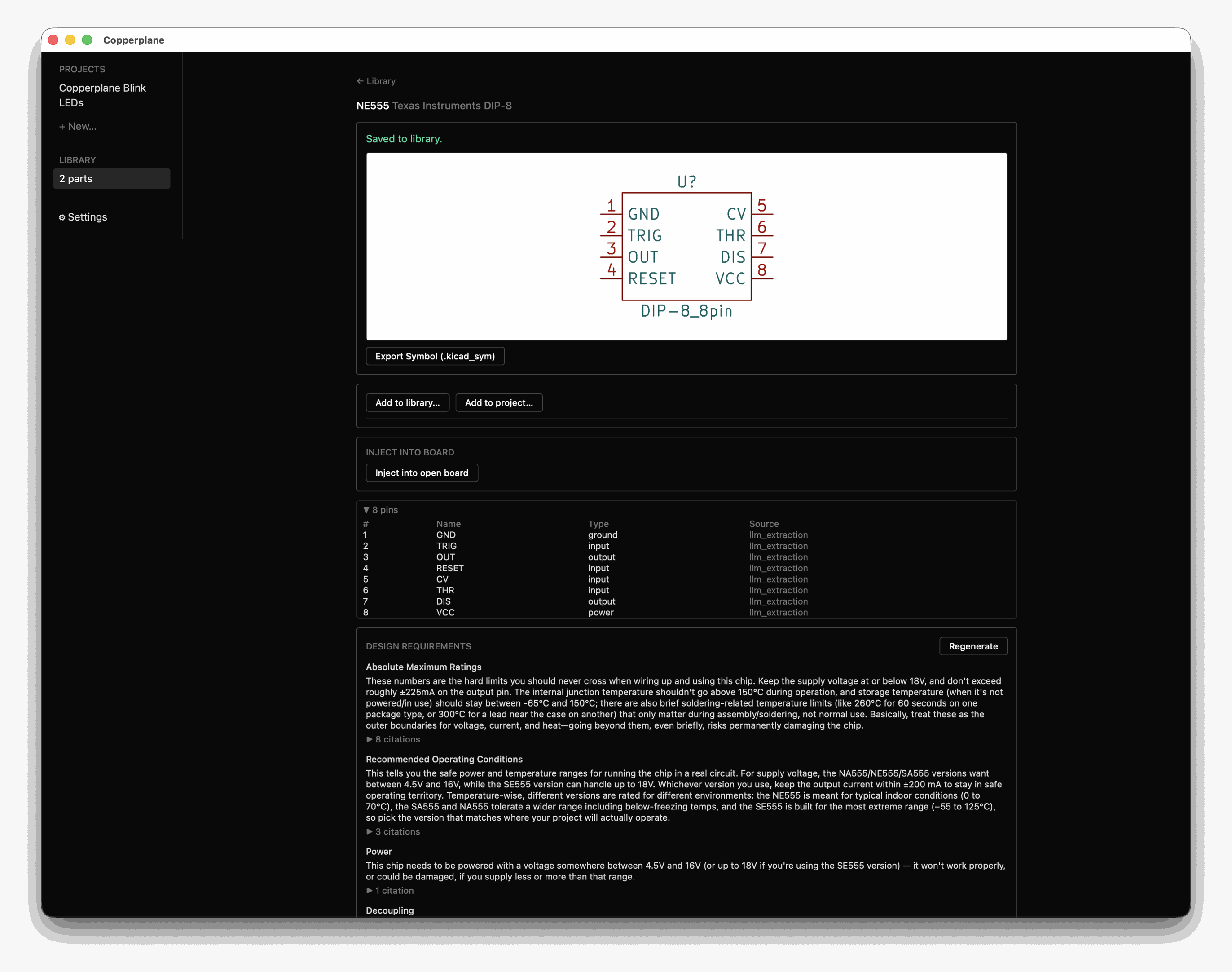
Your installed KiCad libraries — everything configured on your machine, including the ~150 that ship inside KiCad itself. This is the first place to look and usually the last. Requires KiCad installed and its API enabled.
Your own saved library — anything you previously saved or generated. Results from both sources are merged and tagged so you can see which is which.
Curated community libraries — SparkFun and Espressif, searched through GitHub’s API. Optional, and you can supply your own GitHub token in Settings if you hit rate limits. Imported files are stored verbatim rather than re-derived, so what you keep is what they published.
The abbreviations, decoded
Section titled “The abbreviations, decoded”A KiCad footprint name is a compressed sentence — LED_THT:LED_D5.0mm-4_RGB is
a through-hole 5 mm four-pin RGB LED, if you already know how to read it. Expand
a part and the app decodes the fragments it recognises.
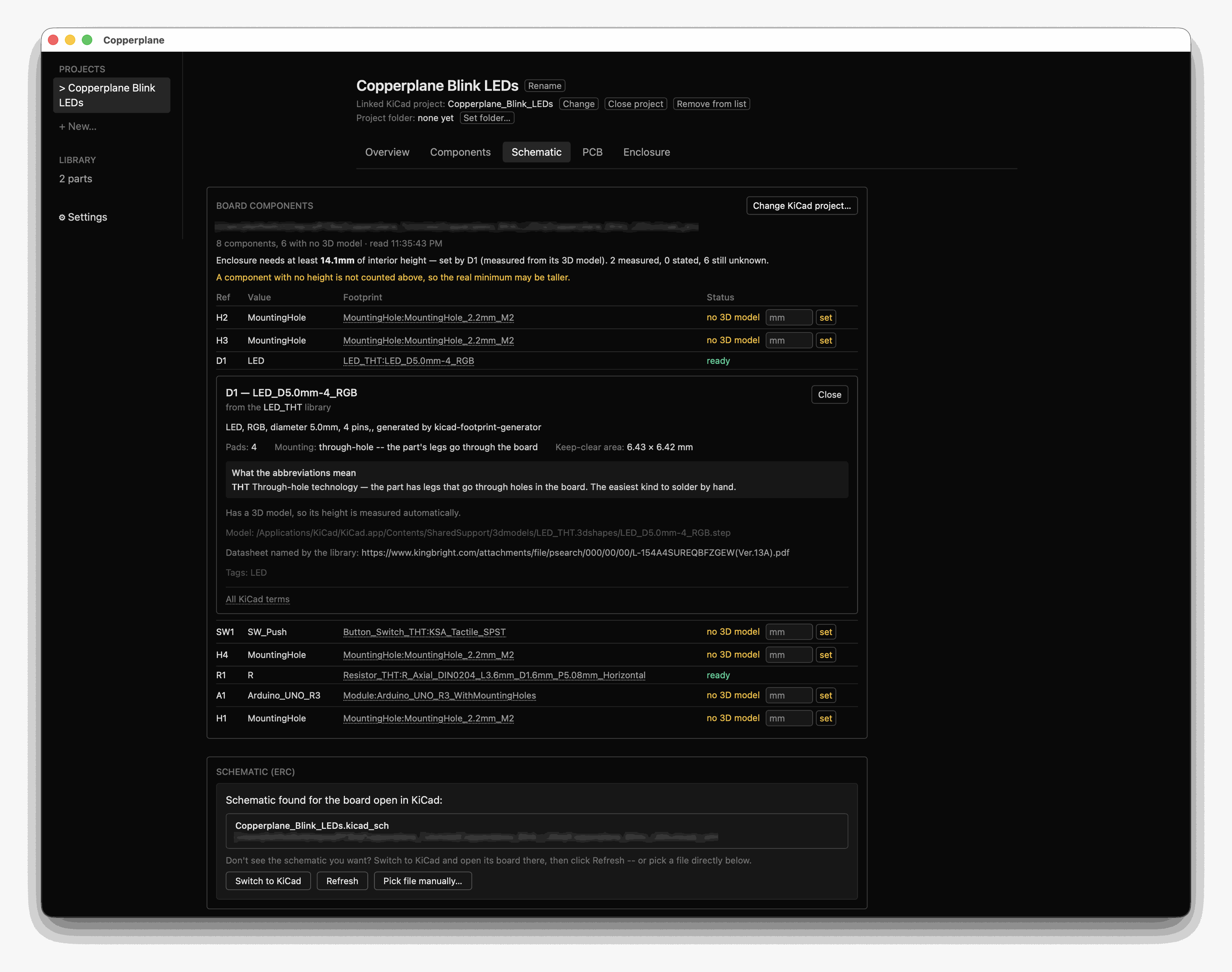
It decodes from name fragments rather than a fixed list, which is how thirty-odd entries and a handful of prefix letters cover most of the 15,000-plus footprints KiCad ships. A fragment it does not recognise is left alone rather than guessed at.
Generating one
Section titled “Generating one”If nothing fits, the app can build a footprint from the package dimensions in your part’s own datasheet — which extraction already captured, so no extra API call is needed.
It fails closed for any package it does not recognise, rather than guessing geometry. That is intentional: a plausible-looking wrong footprint costs a board spin.
Symbols
Section titled “Symbols”Symbols are generated from the extracted pins and laid out on KiCad’s own
2.54 mm grid. Parts with the same package and pin count converge on one shared
symbol rather than duplicating — every 8-pin DIP part you save uses the same
DIP-8_8pin symbol.
Export Symbol writes a real .kicad_sym file. That file is a library, in
KiCad’s sense. Which brings us to the part nobody explains.
What a custom library actually is
Section titled “What a custom library actually is”If you are new to KiCad, this is the piece that trips everyone up, and it is simpler than it looks.
KiCad does not scan your disk for parts. It reads a list of libraries you have
told it about — one list for symbols, another for footprints. A library is just
a file (.kicad_sym) or a folder (.pretty), and the list is a table mapping a
short nickname to that path.
So a symbol you have on disk is invisible to KiCad until you add its file to that list. That is the whole mechanism. Nothing is installed, nothing is copied — KiCad just starts looking in one more place.
KiCad’s own documentation covers this properly:
Adding one
Section titled “Adding one”Export the symbol, then in KiCad:
Preferences → Manage Symbol Libraries → Add (+), point it at the exported
.kicad_sym, and give it a nickname.
Footprints work the same way through Preferences → Manage Footprint
Libraries, pointing at a .pretty folder.
There are two tables — Global and Project Specific. Global means every project you ever open can see it; project-specific keeps it with one project and travels with that folder if you move or share it. For a part you will reuse, Global. For something specific to one board, project-specific.
Once a library is in the list, it stays. Open the symbol chooser and your part is there beside KiCad’s own, searchable by name.
Injecting into an open board
Section titled “Injecting into an open board”There is also a direct route: with a board open in KiCad and its API enabled, the app can write a footprint straight onto that board. It shows you what it will write and does nothing until you confirm, and the write is a real KiCad transaction that commits fully or rolls back.
Read what it does before using it. It puts a footprint on the board and nothing else:
- The part gets KiCad’s
REF**placeholder instead of a reference designator. - It has no net connections.
- Your schematic does not know it exists, and KiCad’s forward annotation cannot reconcile that later.
- DRC gains a warning that the footprint’s library is not in your configuration, because the footprint was not placed from a library.
That is not a defect in the write — it is what writing to a board while bypassing the schematic means. KiCad’s flow is schematic → netlist → board.
So it is useful for a board with no schematic, or for placing something you intend to wire up by hand. For everything else, add the symbol to a library and place it in the schematic: the part then reaches the board through Update PCB from Schematic, with its designator and its nets, and the two files agree.
Injecting a symbol into a live schematic is not possible at all — KiCad’s API has no schematic support to call.