

First run
The first time you open Copperplane it asks for one thing: an AI provider. Nothing else is required to get going, and you can decline even that and look around.
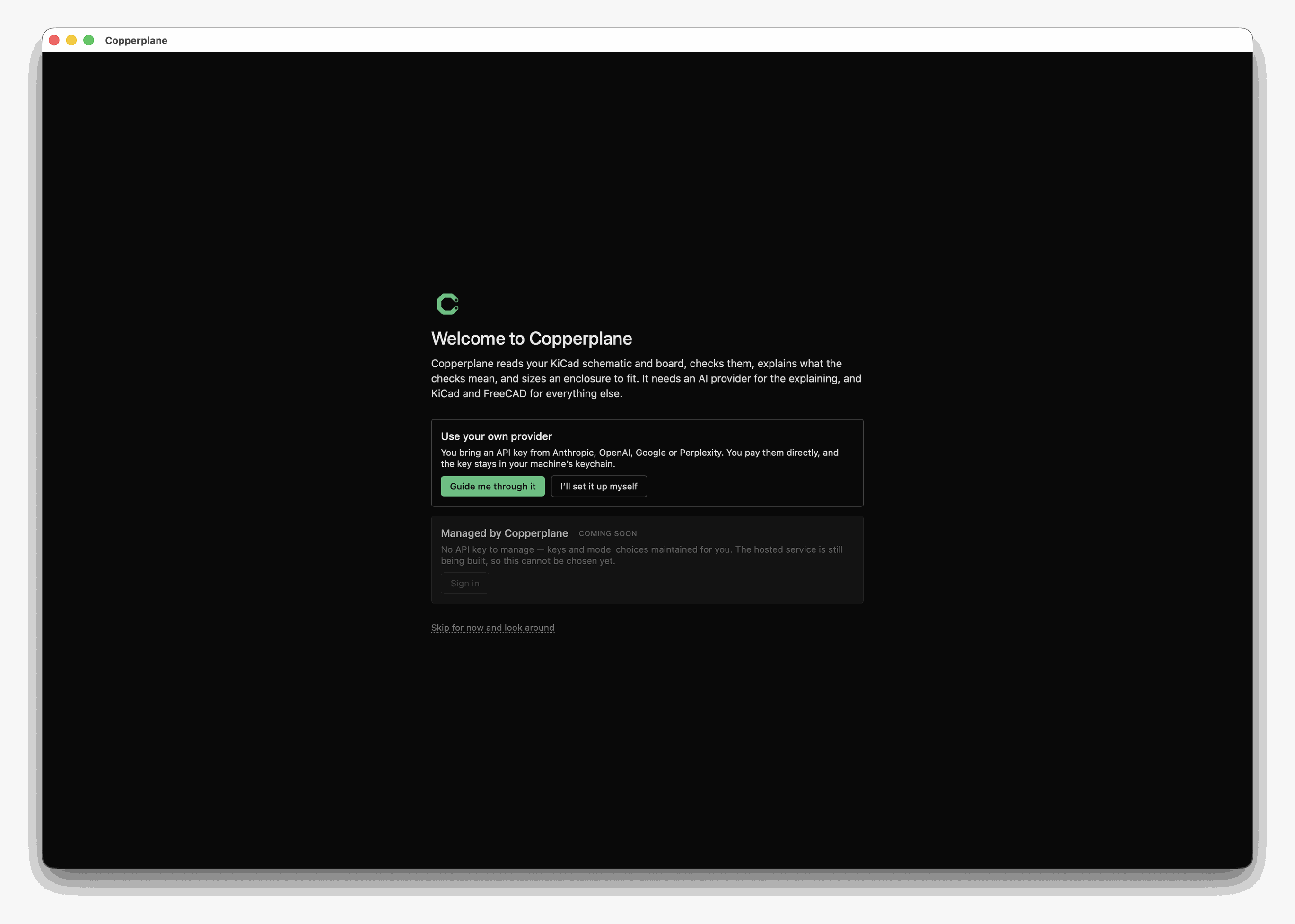
Three ways forward, and none of them is wrong.
“Guide me through it”
Section titled ““Guide me through it””Two steps, about a minute.
Step 1 — an AI provider. Pick one from the list, paste a key, and continue.
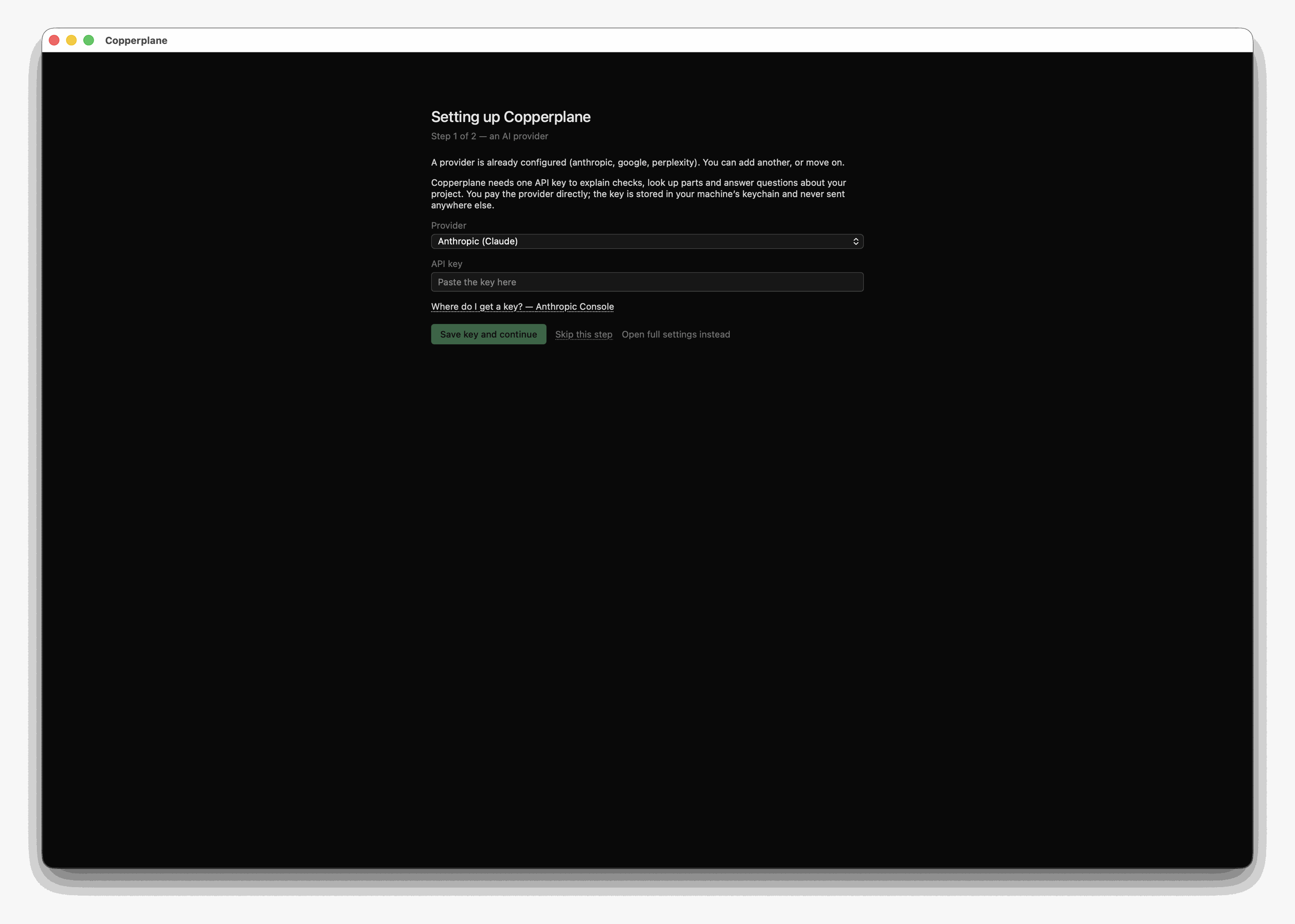
You are paying the provider directly, not us. The key goes into your operating system’s keychain, never into a config file — see Privacy and your data for what actually leaves your machine under each provider.
If you have no key yet, the Where do I get a key? link opens the right console for whichever provider you picked. Skip this step moves on without one; the app still runs, and the features that need a model say so rather than failing oddly.
Step 2 — KiCad and FreeCAD. Copperplane looks for both and shows you what it found, with the real paths.
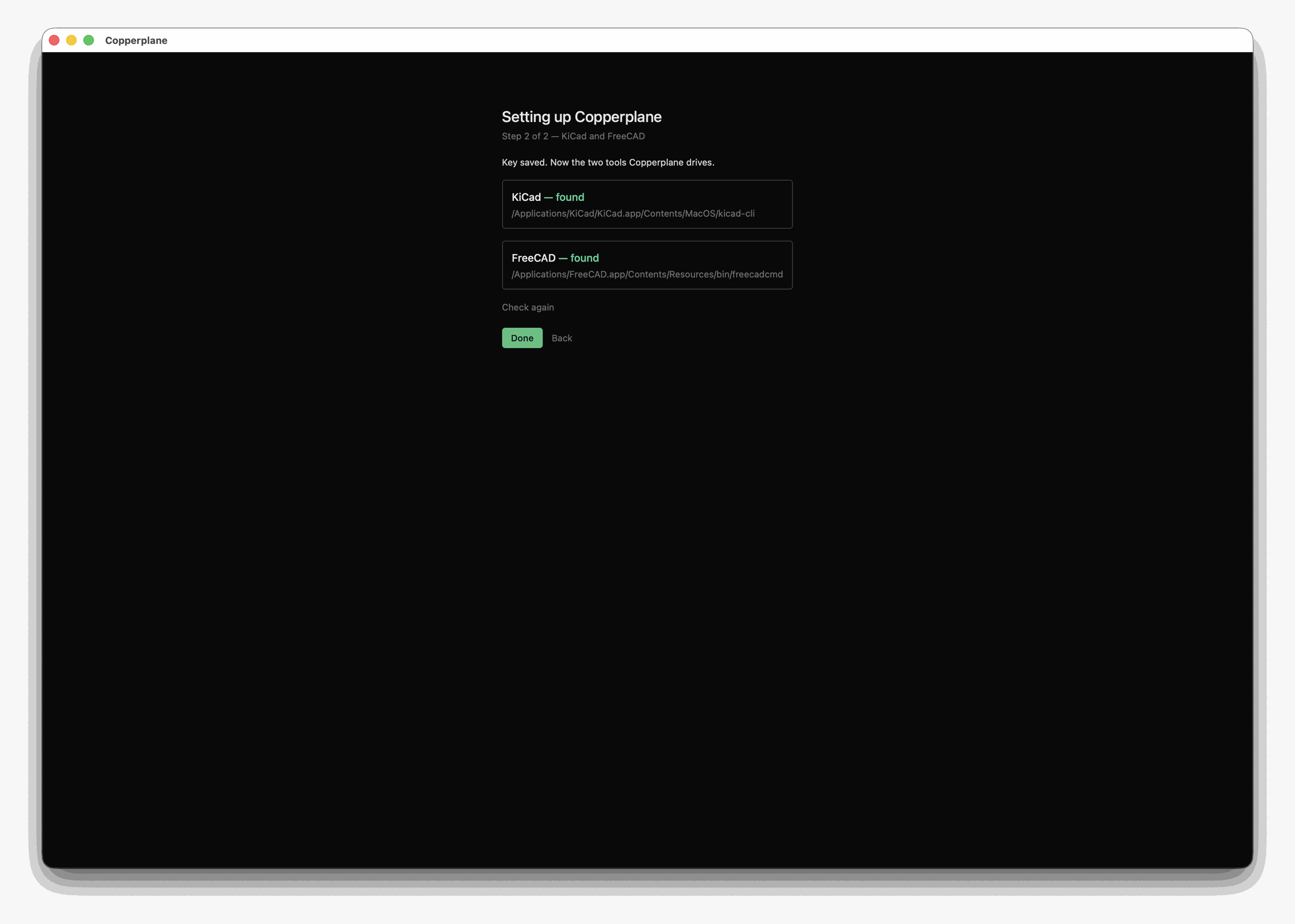
Finding neither is not an error here. The button reads Done when both are present and Continue anyway when they are not, which is the honest thing for it to say: you can go on, and the parts that need a missing tool will tell you.
“I’ll set it up myself”
Section titled ““I’ll set it up myself””Opens Settings directly. Same destination, no hand-holding.
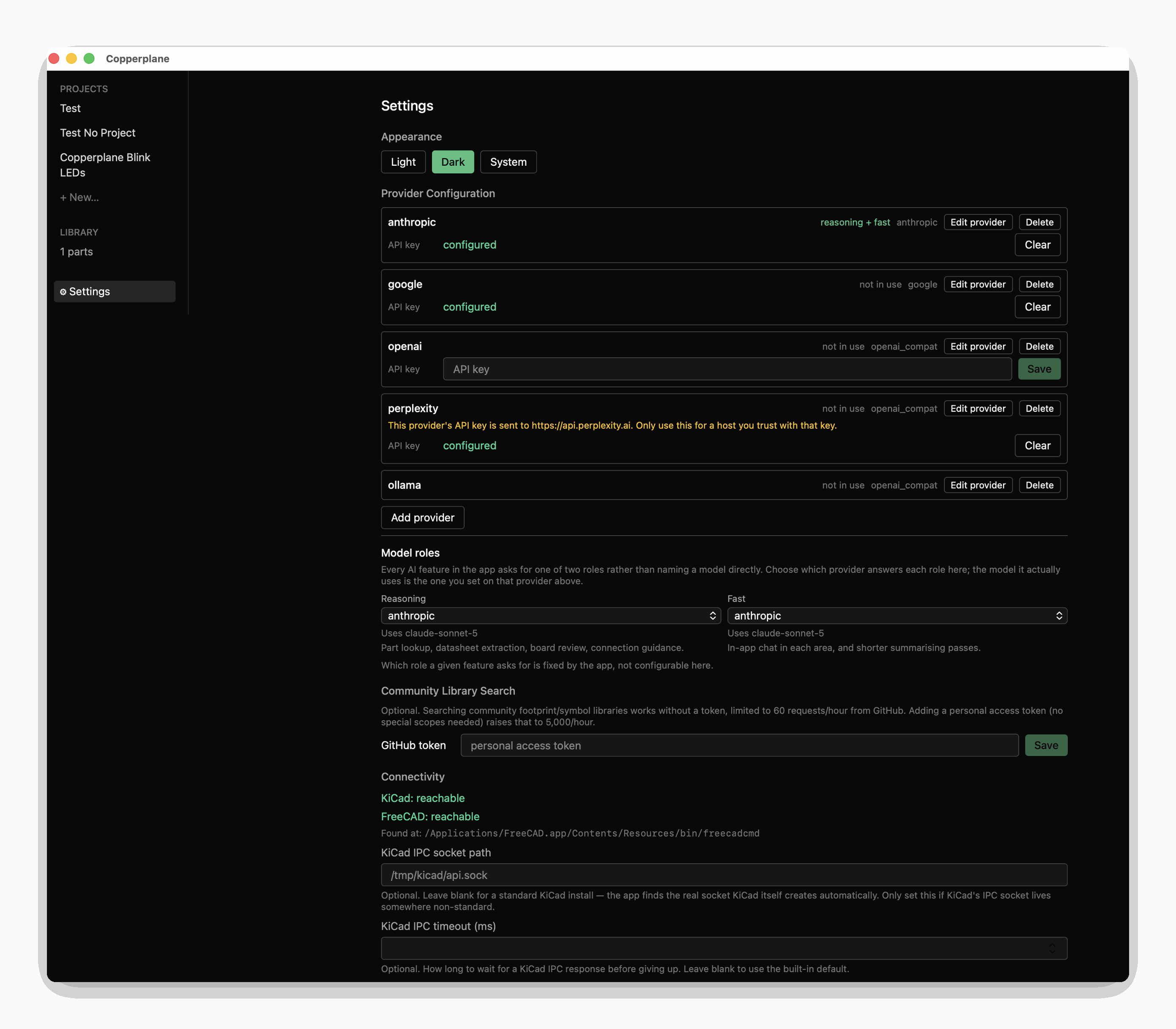
Everything the wizard would have asked is here, plus the things it does not cover: which provider answers the reasoning role versus the fast one, an optional GitHub token that raises community-library search from 60 requests an hour to 5,000, override paths if KiCad or FreeCAD live somewhere unusual, and the storage folder that decides which projects appear in the rail.
“Skip for now and look around”
Section titled ““Skip for now and look around””Dismisses the question and drops you on the launch view. Nothing is configured and nothing is broken — you can open a project, read its components, and see what the app is before deciding whether to give it a key.
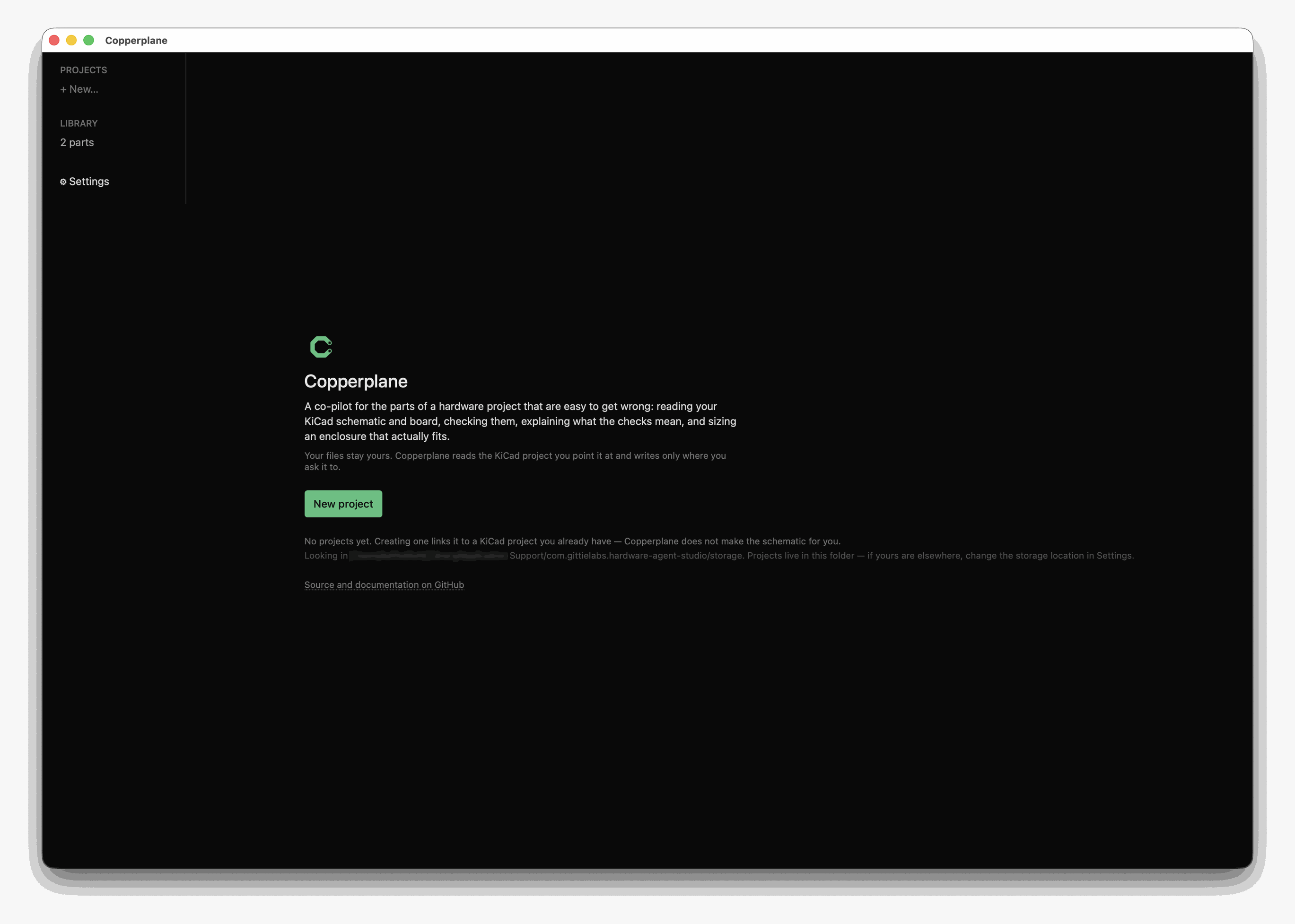
The setup question does not come back. When you do want it, Settings has everything.
What you need, and when
Section titled “What you need, and when”Copperplane bundles neither KiCad nor FreeCAD. Both are separate programs you install yourself, and it is explicit about which features need which:
| You want to | You need |
|---|---|
| Read a board, run ERC or DRC, search footprints | KiCad 9+ |
| Have check results explained, look up parts, ask questions | An AI provider key |
| Generate an enclosure | FreeCAD 0.20+ |
| Browse the app, read your library, change settings | Nothing |
Most of what the app does reads files on disk, with KiCad closed — the checks, your schematic’s connectivity, the parts on your board. KiCad’s IPC server is only needed for a handful of live-session features, and it is off by default: Preferences → Plugins → Enable KiCad API. The install page lists exactly which features want it.
Then start here
Section titled “Then start here”Your first board check walks a real Arduino shield end to end — five genuine errors, one mistake that no checker reports, and an enclosure sized to fit. It is the fastest way to see what the app is for.